Why Most ChatGPT Image Prompts Produce Images You Cannot Use
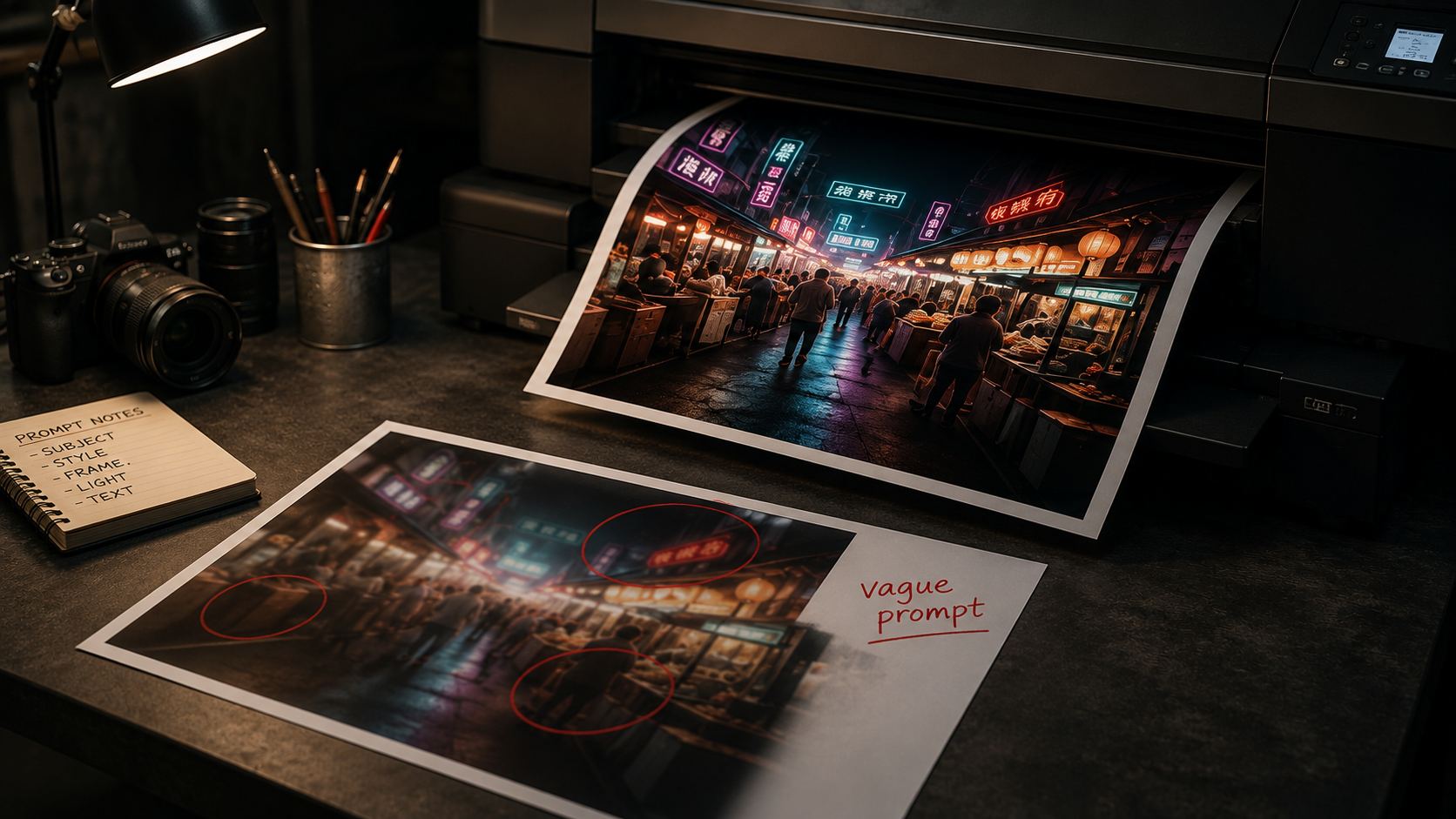
You type “a futuristic city, high quality, 4K, trending” into ChatGPT, wait thirty seconds, and get something that looks impressive for exactly four seconds. Then you notice the text on the billboard is gibberish, the composition is wrong for where you actually need the image, and you have no idea how to get a second image that matches the first one. So you generate again. And again. Twenty minutes later you have burned through your limit and still have nothing you can put in a blog post, a deck, or a product page.
The problem is not the model. Since ChatGPT Images 2.0 launched in April 2026, the model has been good enough that a usable result on the first or second attempt is a reasonable expectation. The problem is that most people still prompt it like it is 2023: a pile of adjectives, no structure, and no plan for iteration.
This ChatGPT Images 2 tutorial fixes that. It covers the prompt structure that reliably produces usable images, the in-thread editing workflow that most people never discover, and a complete worked example: a five-image series built from one base prompt, with every prompt included so you can run the whole thing yourself.
What ChatGPT Images 2 Actually Is
Before this ChatGPT Images 2 tutorial gets into prompt mechanics, it helps to understand what you are prompting, because the model’s architecture explains why certain prompt styles work and others waste your limits.
ChatGPT Images 2.0, built on the GPT Image 2 model, replaced OpenAI’s older image models in April 2026, with DALL-E 2 and 3 retired the following month. The model is autoregressive: it builds an image the same way a language model builds a sentence, token by token, processing text and pixels through the same pipeline. That is not trivia. It is the reason the model can now render text inside images at a claimed 99% accuracy, up from the 90-95% range of the previous generation. When it writes a headline on a poster, it constructs the letters as language, not as shapes that happen to resemble letters.
The practical capabilities that matter for this ChatGPT Images 2 tutorial:
Reliable text rendering. Posters, menu boards, packaging, and UI mockups are now usable in a single pass, as long as you quote the exact text in your prompt.
Up to 8 coherent images from one prompt. Characters and objects stay consistent across the batch, which is what makes image series possible.
2K resolution and flexible aspect ratios, from 3:1 all the way to 1:3, so you can generate for a specific slot instead of cropping afterward.
Thinking mode on paid plans. The model can search the web for real-time reference, plan the composition, and double-check its own output before showing you anything.
In-thread editing. Reply to a generated image with a change request and the model modifies it while keeping the composition locked. This is the single most underused feature, and this ChatGPT Images 2 tutorial leans on it heavily.
The 5-Part Prompt Structure That Actually Works
Every usable prompt in this ChatGPT Images 2 tutorial follows the same five-part structure. You do not need to write it as a rigid template, but every part should be present somewhere in the prompt. When an image comes back wrong, the fastest diagnosis is checking which of the five parts you left vague.
Subject and action. Who or what, doing what. “A street vendor grilling skewers” beats “street market scene” because the model has a focal point to build around.
Medium and style. Photograph, flat vector illustration, watercolor, 3D render. Be literal: “editorial photograph, shallow depth of field” produces a predictable result. “Clean and modern” produces a coin flip.
Composition and framing. Wide establishing shot, close-up, overhead, eye level. This is where aspect ratio belongs too: name it explicitly, like “16:9 wide format,” instead of hoping.
Lighting and mood. Golden hour, overcast, neon-lit night, soft studio lighting. Lighting does more to set the mood than any adjective like “atmospheric” ever will.
Exact text, in quotes. If the image needs words, quote them: a sign that reads “OPEN 24 HOURS”. Unquoted text requests are the number one source of gibberish lettering.
One more rule that saves more retries than anything else: describe what you want, not what you do not want. The model handles “an empty street” far better than “a street with no people.” Negations are where autoregressive models still stumble, because every word you write becomes a token the model attends to, including the thing you were trying to exclude. Keep that in mind for every prompt in this ChatGPT Images 2 tutorial.
Before and After: Fixing a Real Prompt
Here is the difference the structure makes. This is the kind of prompt most people write before finding a ChatGPT Images 2 tutorial:
“A cool coffee shop image for my website, high quality, professional, 4K”
Every phrase in that prompt is a request for the model to make your decisions for you. “Cool” is not a style. “For my website” is not a composition. “4K” does nothing in ChatGPT Images 2, which already generates at up to 2K resolution regardless of what you type. Here is the same intent, rewritten with the five-part structure this ChatGPT Images 2 tutorial is built around:
“Editorial photograph of a barista pouring latte art at a wooden counter, warm morning light through a large window, shallow depth of field, eye-level medium shot, 16:9 wide format. A small chalkboard in the background reads ‘SINGLE ORIGIN’.”
Same length of effort, completely different outcome. The second prompt gives the model a subject, a medium, a composition, lighting, and exact text. Anything it gets wrong is now a specific, correctable miss instead of a total do-over. That is the entire promise of this ChatGPT Images 2 tutorial.
Iterate In-Thread, Never From Scratch
The workflow habit at the heart of this ChatGPT Images 2 tutorial, the one that separates people who get usable images from people who burn their limits, is this: after the first generation, stop writing new prompts. Reply to the image instead.
When you reply in-thread with “same scene, warmer lighting” or “keep everything, but make the chalkboard text larger,” ChatGPT Images 2 treats the existing image as the base and modifies only what you asked for. The composition stays locked. Starting a fresh prompt, by contrast, rerolls everything, and you lose whatever the first attempt got right.
Three rules make in-thread iteration work, and every later example in this ChatGPT Images 2 tutorial depends on them:
One change per reply. “Warmer light, different angle, add a customer, change the text” gives the model four ways to drift. Stack changes one at a time and you can always step back to the last good version.
Name what should stay the same. “Same barista, same counter, now shot from overhead” anchors the model to the elements you are keeping.
Batch your variants. If you genuinely want options, ask for four variations in a single request. One batch request generally counts as one generation against your rate limit; four separate prompts count as four.
Worked Example: Building a 5-Image Series From One Base Prompt
This is the part of the ChatGPT Images 2 tutorial where the structure and the iteration workflow come together. The goal: a coherent set of images about one subject, starting with an establishing photo and drilling into details, the way you would build visuals for an article, a product story, or a pitch deck. The subject here is a fictional night market, chosen because it stress-tests everything: crowds, lighting, signage text, and character continuity.
Run these five prompts in a single ChatGPT thread, in order. The series only holds together because each prompt builds on the previous image instead of starting over, and every one of them applies the five-part structure from earlier in this ChatGPT Images 2 tutorial.
Image 1: The Establishing Shot
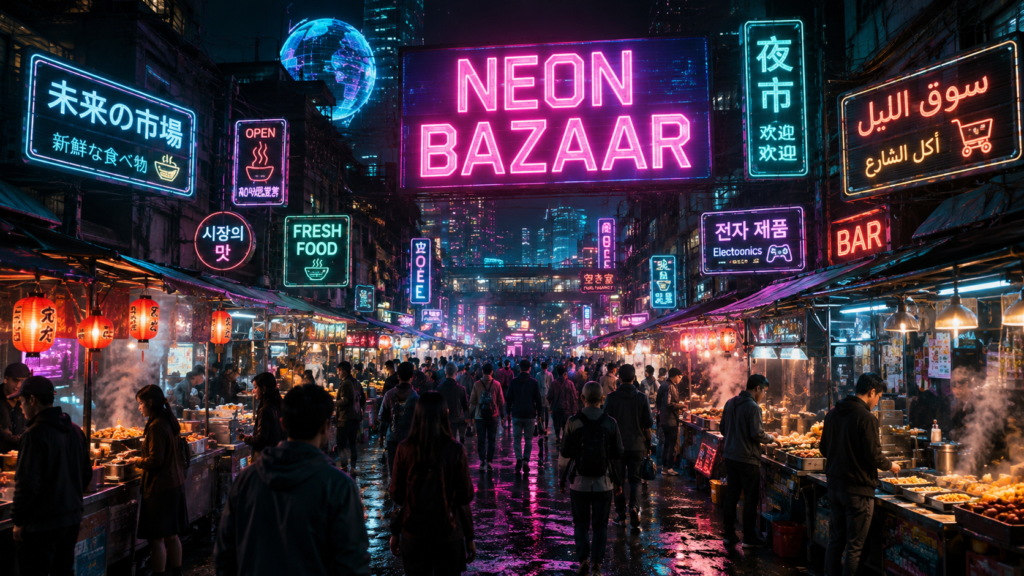
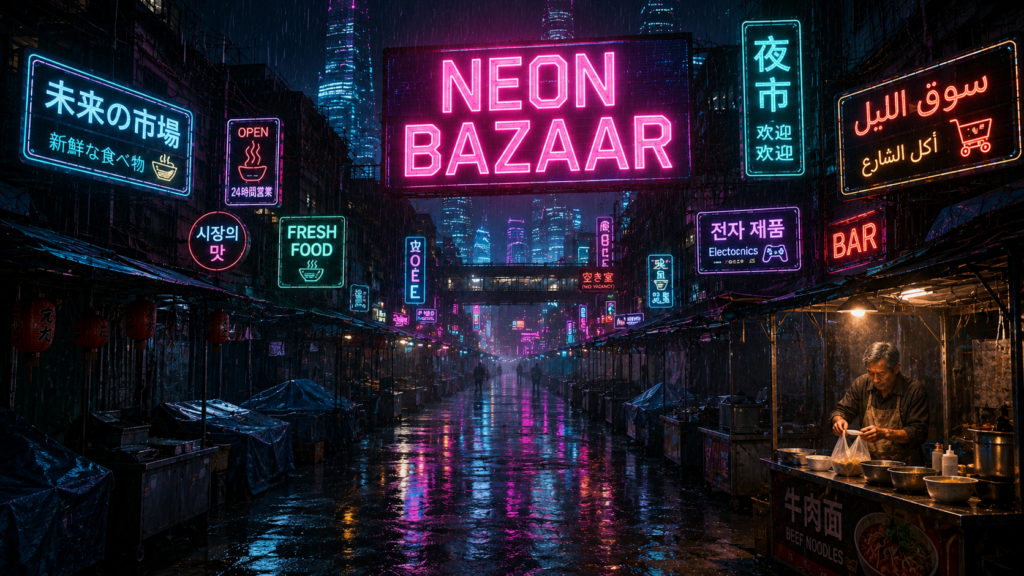
“Cinematic photograph of a crowded futuristic night street market in a narrow alley, glowing holographic signs in multiple languages overhead, food stalls with steam rising, wet pavement reflecting neon light in teal and magenta, wide establishing shot at eye level, 16:9 format. The largest neon sign reads ‘NEON BAZAAR’.”
The base image the entire series inherits from: composition, palette, and the ‘NEON BAZAAR’ sign.
Notice the prompt sets the palette (teal and magenta), the weather (wet pavement), and the exact signage text. Those three anchors are what every later image in this ChatGPT Images 2 tutorial series will reference.
Image 2: The Vendor Close-Up
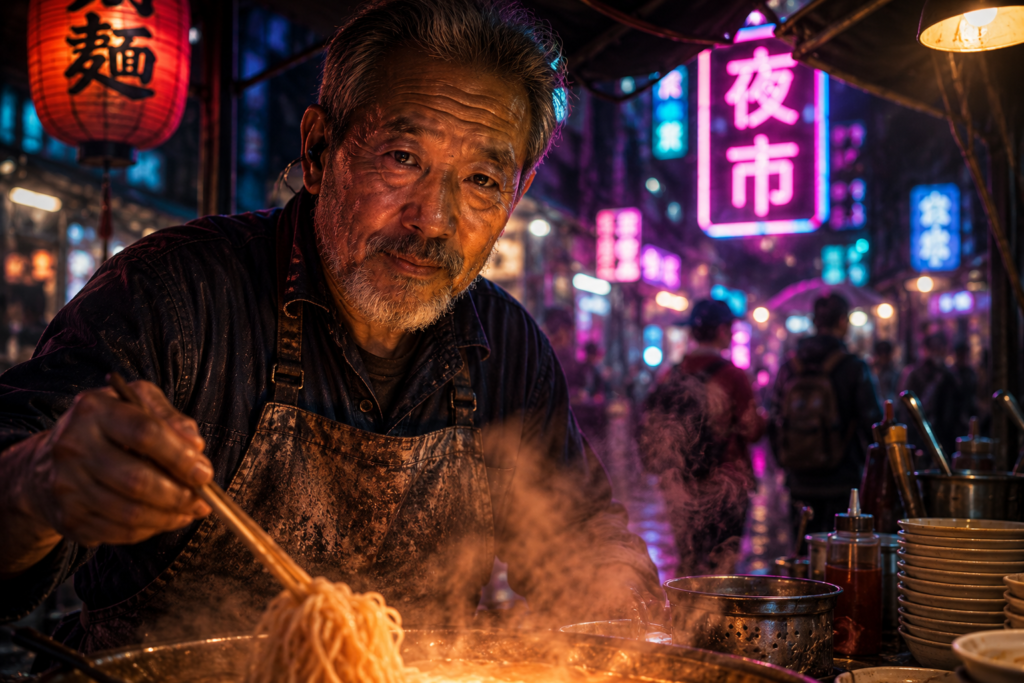
“Same market, same lighting and color palette. Close-up portrait of one street vendor at his noodle stall: an older man with a gray beard, wearing a worn apron and an earpiece, lit from below by the orange glow of his cooking station, steam drifting across the frame, shallow depth of field, 3:2 format.”
‘Same market, same lighting’ carries the establishing shot’s palette into a portrait.
The opening phrase “same market, same lighting and color palette” is doing the continuity work. The new details, the beard, the apron, the earpiece, give the model a specific character it can reuse later in the ChatGPT Images 2 tutorial series.
Image 3: The Product Detail
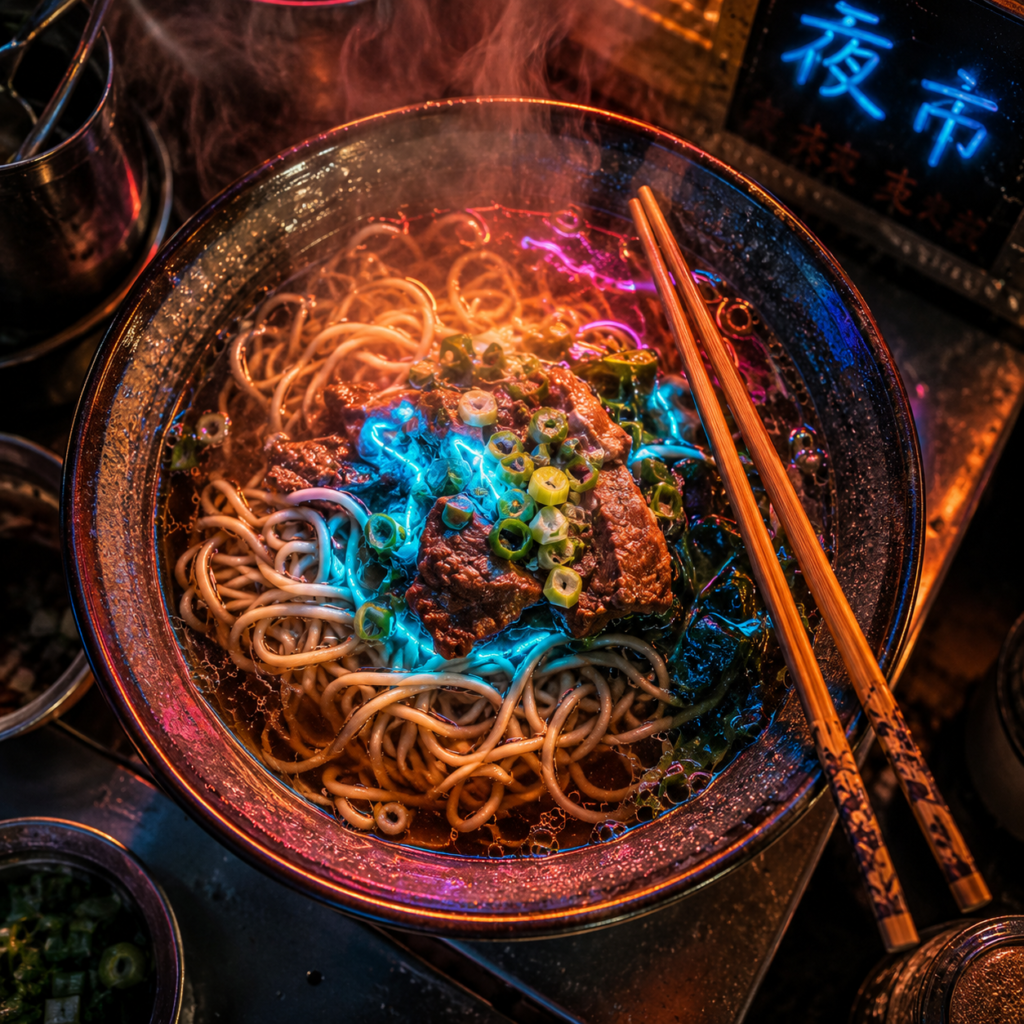
“Same stall. Overhead macro shot of the food itself: a steaming bowl of noodles with glowing blue garnish, chopsticks resting across the rim, condensation on the bowl, neon reflections in the broth, square 1:1 format.”
Changing only the framing, from portrait to overhead macro, while the scene stays put.
This is the shortest prompt in the whole ChatGPT Images 2 tutorial, and that is deliberate: by the third image, the thread is already carrying the style, so the prompt only needs to describe what is new.
Image 4: The Text-Rendering Test
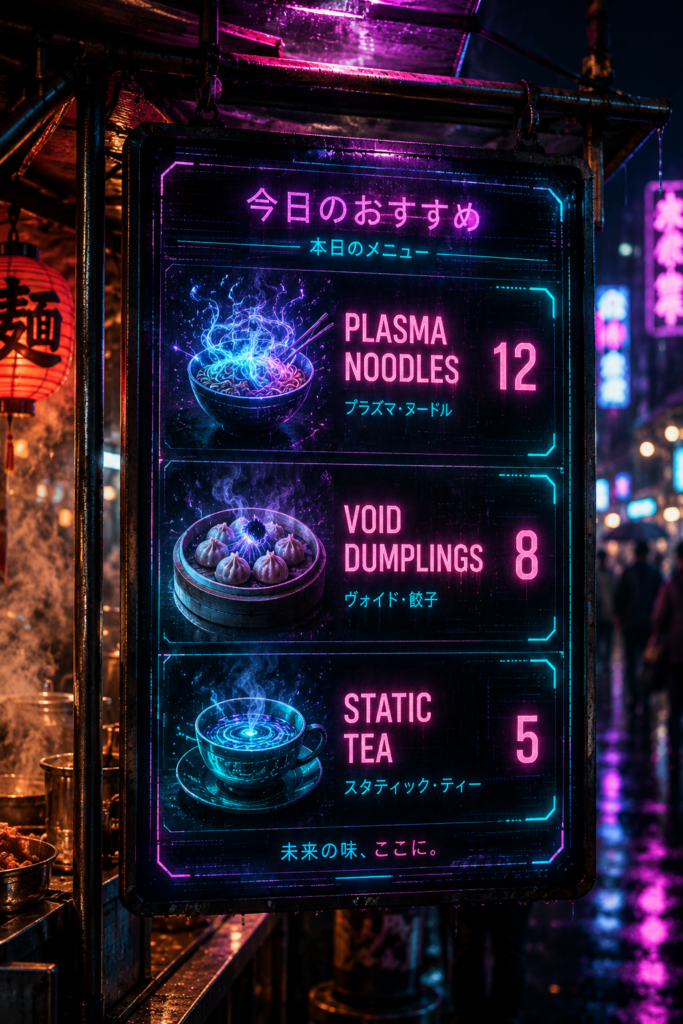
“Same stall, straight-on shot of the vendor’s hanging menu board: a backlit panel in the market’s teal and magenta palette listing three items with prices: ‘PLASMA NOODLES – 12’, ‘VOID DUMPLINGS – 8’, ‘STATIC TEA – 5’. Slight lens flare from the neon above, 2:3 vertical format.”
Three quoted lines of text with prices, the hardest test in the series, rendered in one pass.
This is the image that was impossible to get right before 2026, and no other prompt in this ChatGPT Images 2 tutorial leans harder on the new text engine. Three lines of exact text with numbers, in a stylized environment. Quote every line and the current model handles it in one pass most of the time; on the free tier, expect an occasional retry.
Image 5: The Mood Variant
“Return to the wide establishing shot from the first image, same alley and same ‘NEON BAZAAR’ sign, but now at closing time: rain falling, most stalls dark, the noodle vendor from earlier packing up alone under his stall’s last lit lamp, 16:9 format.”
The series closes the loop: same location, same character, different hour.
The final prompt references both earlier images: the location from image 1 and the character from image 2. That cross-referencing is what turns five generations into a story instead of five unrelated pictures, and it only works because everything happened in one thread, which is why this ChatGPT Images 2 tutorial insisted on it.
The Same Method for Blog Feature Images
The series method this ChatGPT Images 2 tutorial just walked through is also the fastest way to produce feature images that look like they belong to the same publication. Write one base style prompt for your site, save it, and swap only the subject per article. A reusable pattern looks like this:
“Flat vector editorial illustration, 3:1 wide banner format, dark navy background with electric blue and warm coral accents, generous negative space on the right side for a headline overlay. Subject: [describe the article’s core idea as one visual metaphor].”
Two details in that pattern matter more than they look. The negative-space instruction reserves room for your title overlay, so the image is designed for its slot instead of fighting it. And describing the article as one visual metaphor, a maze made of chat bubbles, a hand adjusting a single oversized dial, forces you to pick a concept the model can actually draw, instead of asking it to illustrate “AI productivity” and getting a blue brain with circuits again. The five-part checklist from earlier in this ChatGPT Images 2 tutorial applies to banners exactly as it does to photographs.
The Mistakes That Waste Your Generation Limits
Every mistake below shows up constantly in real usage, and each one costs you generations that this ChatGPT Images 2 tutorial’s workflow would have saved.
Quality incantations. “4K, ultra-detailed, masterpiece, trending” changed nothing then and changes nothing now. Spend those words on composition and lighting instead.
Rerolling instead of replying. A fresh prompt rerolls the whole image. An in-thread reply fixes only the broken part. Reroll only when the composition itself is wrong.
Unquoted text. “A sign about opening hours” invites gibberish. A sign that reads “OPEN 24 HOURS” gets rendered as written.
Negative phrasing. “No people, no cars, not cluttered” plants exactly the tokens you were avoiding. Describe the empty version of the scene instead.
Cropping instead of specifying. Generating square and cropping to a banner throws away composition. Name the aspect ratio in the prompt; the model composes for it.
Building a series across separate chats. Continuity lives in the thread. Start a new chat and “same vendor” means nothing.
Plans and Limits: What You Get Without Paying
You can run everything in this ChatGPT Images 2 tutorial on the free plan, with patience. Free users get roughly 3 to 10 image generations per rolling 3-hour window depending on load, all aspect ratios, and up to 2,000 pixels on the long edge. The two meaningful paid-tier differences: thinking mode, where the model plans and self-checks before rendering, is not available free, and prompts that depend on precise object counts or strict layouts may take an extra retry or two without it.
Plan
Image Limits
What It Means in Practice
Free
Roughly 3-10 generations per 3-hour window, flexes with demand
Enough for one careful series per session if you batch variants and iterate in-thread
Plus
Substantially higher rolling limits, thinking mode enabled
Comfortable daily use; fewer retries on text-heavy and layout-strict prompts
Pro / Business
Highest limits, priority capacity
For teams producing image sets daily
Limits shift with demand and OpenAI does not publish exact numbers for every tier, so treat the table as orientation and check your own account before planning a big batch. Remember the one free-tier survival rule: a single request for multiple variants counts as one generation, so ask for four options in one prompt rather than four prompts. That single rule stretches a free plan far enough to complete every exercise in this ChatGPT Images 2 tutorial.
Frequently Asked Questions
Does this ChatGPT Images 2 tutorial work on the free plan?
Yes. Every prompt in this ChatGPT Images 2 tutorial, including the full five-image series, runs on the free tier. You may need two sessions to finish the series if you hit the rolling window limit, and the menu board image may take a retry without thinking mode.
How do I keep a character consistent across images?
Two habits: give the character three or four specific, repeatable details when you introduce them (the gray beard, the worn apron, the earpiece), and keep the whole series in one thread so each prompt can reference the previous image. That is exactly how the Neon Bazaar series in this ChatGPT Images 2 tutorial is structured. Alternatively, request up to 8 images in a single prompt; the model maintains character and object continuity across the batch.
Why does text in my images still come out wrong sometimes?
Almost always because the text was described rather than quoted. Put the exact wording in quotation marks, keep it short, and limit yourself to a few lines per image. The menu board prompt in this ChatGPT Images 2 tutorial shows the quoting pattern in full. Accuracy is high but not perfect, and long paragraphs of in-image text remain the hardest case.
Can ChatGPT Images 2 edit a photo I upload?
Yes. Upload an image, describe the change, and the model edits it in place using the same in-thread workflow this ChatGPT Images 2 tutorial uses for generated images. The same rules apply: one change per request, and name what should stay untouched.
What happened to DALL-E?
OpenAI retired DALL-E 2 and DALL-E 3 in May 2026, shortly after Images 2.0 shipped. Everything in ChatGPT now runs on the GPT Image 2 model, so older DALL-E prompt guides, especially their style-keyword tricks, are largely obsolete. The structure in this ChatGPT Images 2 tutorial replaces them.
Can I use the generated images commercially?
OpenAI’s terms allow you to use images you generate, including for commercial purposes, subject to their usage policies. Terms change, so verify the current policy on OpenAI’s site before shipping generated images in paid work, and be cautious with prompts that imitate living artists or real people.
The One Habit That Makes Everything Else Work
Every technique in this ChatGPT Images 2 tutorial collapses into a single habit: treat the first generation as a draft, not a verdict. People who get unusable images write a prompt, judge the output, and start over. People who get usable ones write a structured prompt, keep whatever the first attempt got right, and fix the rest one reply at a time.
The same skill this ChatGPT Images 2 tutorial builds transfers directly to every other AI tool you use. Describing what you want with enough precision that the output is checkable is the core skill behind prompting a code editor too, which is exactly what our Cursor AI tutorial for beginners spends seven steps teaching.
Your next step is not to save this guide. Open ChatGPT now, run the five-part coffee shop prompt from this ChatGPT Images 2 tutorial, and then fix one thing about the result with an in-thread reply. That single loop, structured prompt, targeted fix, is the entire skill. The Neon Bazaar series will be waiting when you want to stress-test it.
Abram Raouf
Abram Raouf is a Software Project Manager specializing in physical security software deployments. With years of experience managing complex agile sprints and cross-functional engineering teams, Abram tests and reviews B2B SaaS tools to help developers and PMs scale their workflows without the fluff.